With Belvo's Open Finance Payment Initiation (OFPI), you can collect payments from your customers and optimize their payment experience. In this guide, we’ll show you:
- the general flow of data
- how to create a Payment Intent to collect payments
- track the status of your payment requests
Please make sure you have completed all the steps in our dedicated prerequisites article before continuing this guide.
As you can see in the diagram below, the data flow for creating a payment using Pix via Open Finance involves:
- Creating a Payment Intent (containing the required information for the payment to be processed in the Open Finance Network).
- Requesting your user to confirm the Pix details.
- Confirming the Payment Intent to initiate the payment.
- Redirecting the Payer to their banking institution to approve the payment.
- Listening for the
SUCCEEDEDwebhooks from the Payment Intents and Charges resources.
The Payment Intent contains all the information necessary to register and process the payment in the Open Finance Network. When using Pix Keys as the beneficiary, you will need to perform two API calls to complete the payment process: first, create the Payment Intent, and then confirm it.
To create a Payment Intent, you will need to make a POST Create a Payment Intent request with the following payload:
{
  "amount": "1234.12",
  "description": "B23A-Shoe-Brown-Sneaker",
  "statement_description": "Super Shoe Store - Brown Sneakers",
  "allowed_payment_method_types": ["open_finance"],
  "external_id": "2c75c041-9cc7-430a-84e9-3b234aae76a2",
  "confirm": false,
  "payment_method_details": {
    "open_finance": {
      "pix_key": "chosen-pix-key",
      "payer_institution": "600f1b4a-1ef9-4f89-b341-1a35f0c32cc0",
      "callback_url": "https://www.acmecorp.com/checkout/3487321"
    }
  },
  "customer": "4714c93c-0132-4da4-b8fe-659515e1b1b6"
}| Parameter | Required | Description |
|---|---|---|
amount | true | The amount of the payment as a string. |
description | true | The description of the payment for your internal purposes. |
statement_description | optional (but recommended) | The description that will appear on the customer's bank statement (highly recommended). Note: If you do not use the statement_description parameter, the description value will be used as the statement description. |
allowed_payment_method_types | true | The allowed_payment_method_types parameter indicates which payment method should be used. For payments in Brazil, this must be set to ["open_finance"]. |
external_id | optional (but recommended) | An additional unique identifier (UUID) for the resource for internal purposes. This can be useful for tracking the resource in your system and for debugging purposes. |
confirm | true | Indicates that the payment is ready for processing. For the initial Payment Intent creation, this must be set to false. You will confirm the payment in a separate step. |
payment_method_details.open_finance | true | In the open_finance object, you have to provide the following details about the payment:
|
customer | true | The id of the previously created customer that will make the payment. Optionally, you can also create the customer at the same time (see the code example). |
In the response of the Payment Intent, you will receive the following highlighted fields. You need to display them in your application to the user so that they can confirm that this is the correct payment information. After they confirm the details, you will need to confirm the Payment Intent in the next step.
{
  "id": "0d3ffb69-f83b-456e-ad8e-208d0998d71d",
  "customer": "1c83ead8-6665-429c-a17a-ddc76cb3a95e",
  "external_id": "4b8a81a0-e33c-45a6-8567-479efb105f73",
  "created_at": "2022-02-09T08:45:50.406032Z",
  "created_by": "bcef7f35-67f2-4b19-b009-cb38795faf09",
  "updated_at": "2022-02-09T08:45:50.406032Z",
  "status": "REQUIRES_PAYMENT_METHOD",
  "amount": "1234.12",
  "currency": "BRL",
  "description": "Training shoes",
  "statement_description": "Super Shoe Store - Brown Sneakers",
  "selected_payment_method_type": "open_finance",
  "allowed_payment_method_types": ["open_finance"],
  "payment_method_details": {
    "open_finance": {
      "pix_key": "53497b80-81a2-4ea8-9296-83a909c05bdf",
      "payer_institution": "600f1b4a-1ef9-4f89-b341-1a35f0c32cc0",
      "callback_url": "https://www.acmecorp.com/checkout/3487321"
    }
  },
  "payment_method_information": {
    "open_finance": {
      "pix_key_details": {
        "identifier": "23******00",
        "name": "João da Silva"
      }
    }
  }
}In the case that the provided Pix Key is a CPF, email address, or phone number, value in payment_method_details.open_finance.pix_key will be masked. If it is a CNPJ or random Pix Key UUID, the value will not be masked.
To confirm the Payment Intent, you will need to make a POST Complete a Payment Intent request with the following payload:
{
  "confirm": true
}
Once you successfully completed a Payment Intent, you will need to use the URL in the payment_method_information.open_finance.redirect_url parameter to redirect your user to their financial institution to confirm the payment. After confirming the payment, your user is redirected back to the callback_url you provided in the Payment Intent request.
The payment intent redirect_url is valid for up to 5 minutes. Additionally, due to the security measures implemented by banking institutions, the redirect URL is highly sensitive and can be invalidated in the following scenarios:
- Being loaded inside a WebView
- Being loaded inside an iframe
- If a DNS lookup occurs before the user is redirected
To avoid payment failures, ensure that the redirect URL is opened directly in the user's default browser immediately after receiving it. Do not preload, cache, or resolve the URL before the actual redirect.
{
  "id": "0d3ffb69-f83b-456e-ad8e-208d0998d71d",
  "customer": "1c83ead8-6665-429c-a17a-ddc76cb3a95e",
  "external_id": "4b8a81a0-e33c-45a6-8567-479efb105f73",
  "created_at": "2022-02-09T08:45:50.406032Z",
  "created_by": "bcef7f35-67f2-4b19-b009-cb38795faf09",
  "updated_at": "2022-02-09T08:45:50.406032Z",
  "status": "REQUIRES_ACTION",
  "amount": "1234.12",
  "currency": "BRL",
  "description": "Training shoes",
  "statement_description": "Super Shoe Store - Brown Sneakers",
  "selected_payment_method_type": "open_finance",
  "allowed_payment_method_types": ["open_finance"],
  "payment_method_details": {
    "open_finance": {
      "pix_key": "53497b80-81a2-4ea8-9296-83a909c05bdf",
      "payer_institution": "600f1b4a-1ef9-4f89-b341-1a35f0c32cc0",
      "callback_url": "https://www.acmecorp.com/checkout/3487321"
    }
  },
  "payment_method_information": {
    "open_finance": {
      "provider_request_id": "978c0c97ea847e78e8849634473c1f1",
      "redirect_url": "https://wakandanational.com/",
      "end_to_end_id": "F203262942022211117487a213b1d140",
      "settlement_date": "2024-10-22",
      "pix_key_details": {
        "identifier": "23******00",
        "name": "João da Silva"
      }
    }
  }
}For each confirmed Payment Intent, Belvo generates a Charge object within the Payment Intent response body.
You will receive webhook notifications for both the Payment Intent and the associated Charge as the payment goes through different statuses.
Below you can see an example of a payment and the associated statuses the payment will go through. You will receive STATUS_UPDATE webhook notifications for each status that is marked with a red dot (🔴).
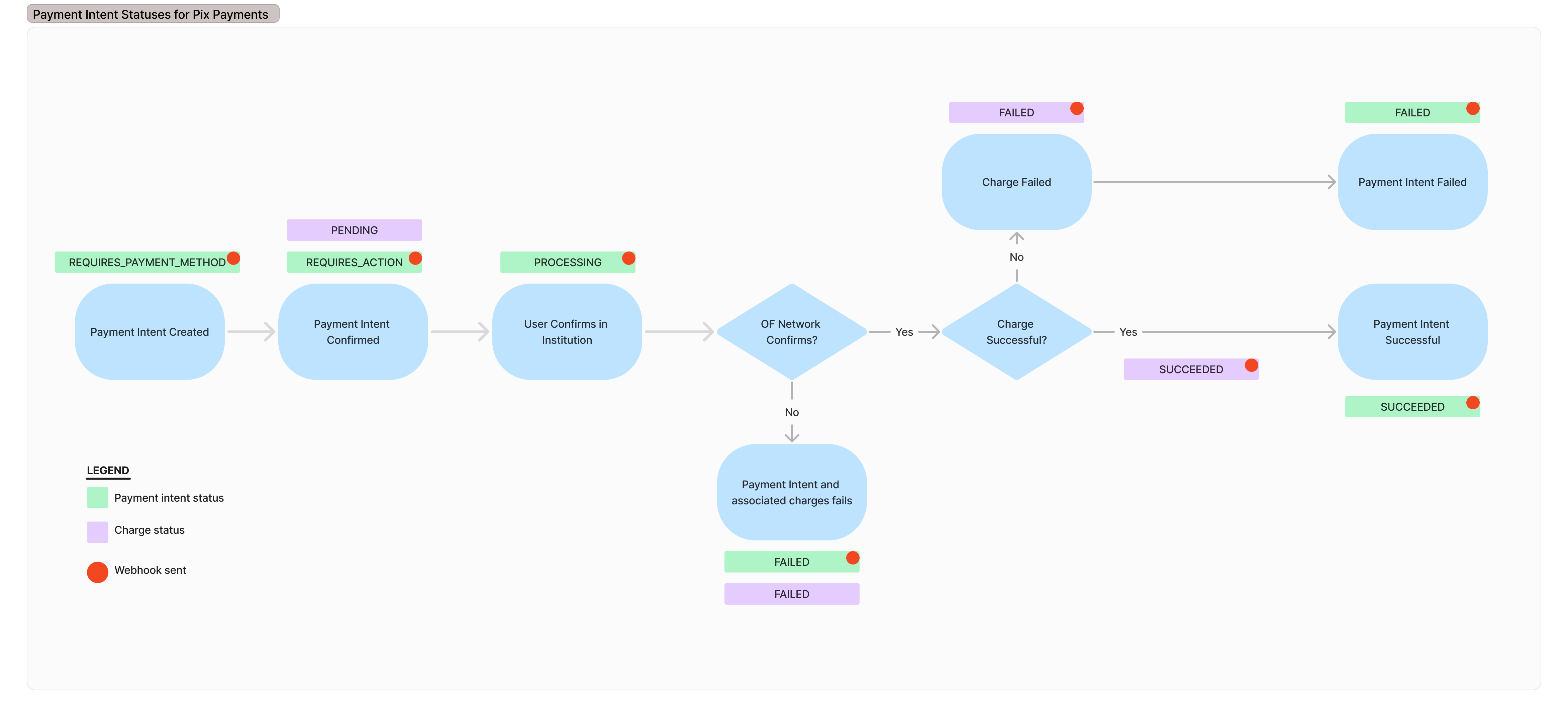
When you receive the SUCCEEDED Payment Intent and Charge webhook events, this indicates that the given payment was settled.
Once you create the Payment Intent, Belvo will provide you updates regarding the payment via webhooks. As you can see in the image in the Data flow overview section, you will receive the following webhooks during the payment process:
| Event | Resource | Description |
|---|---|---|
STATUS_UPDATE | Payment Intents | The STATUS_UPDATE events for Payment Intents indicate the stage of the Pix via Open Finance payment process. You will receive the following status updates: REQUIRES_ACTION, PROCESSING, SUCCEEDED, and FAILED (for example, when the beneficiary Pix Key is invalid: failure_code invalid_pix_key, failure_message The provided Pix Key is invalid.). For webhook payload examples, see Payments Webhooks (Brazil). > Note: Apart from responding to the event with a 200 OK, no further action is required. |
STATUS_UPDATE | Charges | The STATUS_UPDATE events for Charges indicates the stage of the Pix via Open Finance payment process. You will receive the following status updates: SUCCEEDED. > Note: Apart from responding to the event with a 200 OK, no further action is required. |